








• New Horizons on Maelstrom
    Maelstrom New Horizons


    Visit our website www.piratehorizons.com to quickly find download links for the newest versions of our New Horizons mods Beyond New Horizons and Maelstrom New Horizons!

Solved Help with locator, model, and texture

Baste

Freebooter
Staff member
Storm Modder
Hearts of Oak Donator
I have managed to make a new locator and add an item to it, but I need some help getting a model and a texture to work. Hoping someone like @Grey Roger or @Jack Rackham might know.

I've added the macuahuitl (topor_01.gm and Macuahuitl.tga.tx) from Caribbean Legend and it works as a weapon:

macuahuitl.jpg

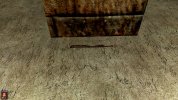
It does however not work properly as an item that can be picked up - it can be picked up but doesn't show correctly:
model.jpg

Only the model shows, and if I add the corresponding texture to RESOURCE\Textures\Items the item doesn't show up at all, though can still be picked up.

The macuahuitl's model and texture are made for use only as weapons, not items, and the model requires EnvAmmo.tga.tx as well. This obviously functions just fine as a weapon, but simply copying that file over for use as an item as well does not work. Something else must apparently be done so the texture will show when used as an item as well.

I have it placed pretty much where I want it, but I also want to flip it so that it lies flat and doesn't look like it's stuck in or balances on the ground, and make it show correctly. Hopefully this can be done somehow.
 
The maquahuitl is already in Build 14, thanks to @Jack Rackham, though at present it's limited to the "Bartolomeu" storyline.

For an example of how to make an object appear to be propped up against a wall, have a look in the Maltese crypt, which you'll find in Bridgetown. Then have a look at file "RESOURCE\MODELS\Locations\Incas Temple\Labirint\lab2_l_ccc.gm", specifically locator "randitem1". It's a matter of altering the XX, XY, XZ, YX, YY, YZ, ZX, ZY and ZZ values to make the locator point the right way. Trigonometry will be involved.
 
I don't find the maquahuitl in the game any longer just a "pistolmaquahuitl" that I have used in WR.

Anyway weapon models use to look very transparent in the game. If you have made a functional maquahuitl - a safer way vould be to place it in a chest instead.
 
I can clarify that this is for my own stock game version, not the Build Mod. I figured the process must be the same in either case.

Here are my current values:

locator.jpg

Code:
randitem,randitem7,0,0,-1,0,1,0,1,0,0,-6.25,0,-3.75,1,0,0,0,0,0,0,0,0,

I tried changing them around but didn't end up with anything useful, so hoped there might be something that particularly stands out.

Though if it can't show properly as an item anyway, maybe I'll have to find something else to do with it.
 
Ok I'll try to answer better:

1) randitem and randitem7 should swap places
2) XX should always = ZZ
3) YY = 1
4) s1 = 1
5) zx = -xz
the rest 0

so try this lineup:

0,0,-1,1,0,0,1,0,0,0,1,1,0

The 3 first are your numbers (the actual position), the rest is a start suggestion. We will see how/if it works.
 
Yeah, I noticed the UI in TOOL and the "Write to File" change the places of the fields for some reason.

Can't quite seem to get it to work. Anyway, if it is like you say that it won't show properly as an item even if placed in the right position, then I guess I'll have to place it in a box or something instead.
 
Ok I'll try to answer better:

1) randitem and randitem7 should swap places
2) XX should always = ZZ
3) YY = 1
4) s1 = 1
5) zx = -xz
the rest 0

so try this lineup:

0,0,-1,1,0,0,1,0,0,0,1,1,0

The 3 first are your numbers (the actual position), the rest is a start suggestion. We will see how/if it works.

For other angles, XX = cos(angle), XY = 0, XZ = sin(angle); YX = 0, YY = 1, YZ = 0; ZX = -XZ, ZY = 0, ZZ = XX. And that's for a locator which is flat on the ground but pointing at an angle other than straight along an axis. For something leaning at an angle, similar calculations involving XY, YX, YY, YZ and ZY are going to be needed.

That, however, was not what I did when I made the rifle in the Maltese Crypt visible:
Solved - Maltese Abbey
The rifle stands at an angle because it's using the "LongRifle_C_back" model, which is already at an angle, so it stands at an angle already and needed to be placed near a wall so it appeared to be leaning against said wall. But the important thing is that it had exactly the same problem as the maquahuitl, which is that it was nearly invisible. That's because .tga textures have an alpha channel which is used differently for weapons and for everything else. For weapons, white in the alpha channel means shiny metal, black means use the texture as shown. For anything else, white means use the texture as shown, black means don't use anything because that part is transparent. It's how you can see through windows and how sails on cursed ships can appear tattered, for example. So the rifle had a mostly black alpha channel to show the wooden bits as texture and the metal bits as shiny. As an item, that showed the metal bits as texture and didn't show the wooden bits at all. I made a new texture with no alpha channel, which means the rifle doesn't look shiny as a weapon but does appear as an item in the crypt.

The same would probably work with the maquahuitl. Use TXConvertor to convert "Maquahuitl.tga.tx" to basic .tga format. Then convert it back again using "R5G6B5" format, which has no alpha channel. For preference, first make a backup copy of the original "Maquahuitl.tga.tx" file so that if this all goes horribly wrong or you don't like it with dull blade bits, you can put it back the way it was.
 
That's because .tga textures have an alpha channel which is used differently for weapons and for everything else. For weapons, white in the alpha channel means shiny metal, black means use the texture as shown. For anything else, white means use the texture as shown, black means don't use anything because that part is transparent.
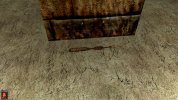
I thought about this since the item apparently does load but not with the texture and decided to try, and lo and behold, the texture appears:

texture.jpg

Now I just want to raise it up so it's not stuck in the ground, and flip it so it lies on its flat side. It's intended to look as if it's just dropped there, not intentionally placed.

I'm not very well-educated in math and won't pretend otherwise. I thus wouldn't know how to properly calculate the values.
 
Raising it is easy, just change PositionY to something that isn't 0. Try 0.1. If you make PositionY too big, the item will probably either float in midair or disappear because it's now above the ceiling. If you make it negative, the item will disappear under the floor.

Flipping it is going to mean playing with XY, YX, YZ and ZY. If you just want to turn it flat, that's a 90 degree turn, so at least one of those values is probably going to want to be 1 and another will probably be -1. And YY will probably be 0. So, for a first experiment, see what happens if you make XY -1, YX 1, and YY 0. If that leaves it standing on one end, put XY and YX back to 0 and try playing with ZY and YZ instead.
 
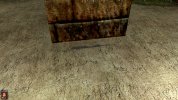
Now it works:

correct.jpg

I played around with it and had to look up more about this, but now it lies flat and works properly. It turns out that flipping it was enough to make it not appear stuck. Here are the values I ended up with:

locatorcorrect.jpg


Thanks for the help, you two.
 
Back
Top