







Silverstreak
Landlubber
Ahoy, My fellow captains!
If you prefer kicking back with a comfortable gamepad controller rather than hunching over a mouse and keyboard during long voyages then THIS FREE CUSTOM GAMEPAD LAYOUT IS FOR YOU.
We know that Caribbean Legend can be very tough to map cleanly. The game engine has tons of keys multiple modes (overlapping key commands in said modes) complex naval menus, and a unique layout that doesn't natively translate well to standard gamepad templates.
MY GOAL was to make the game fully playable with only a gamepad since the game had no actual gamepad support for playing the whole game this way.
I wanted to make CARIBBEAN LEGEND way more accessible to a lot more gamers especially the console gamers such as myself.
and with the release of this COMPLETE FULL LAYOUT I have succeeded.
Every possible command key ,control and control combination from the game has been mapped completely to be fully playable 100% using only your Controller. I also added tons of quality-of-life improvements to overall controls. ( and a few new surprises I personally programmed in) .......
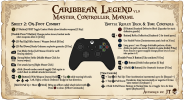
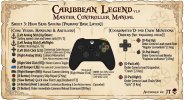
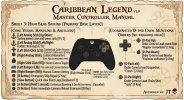
this is A comprehensive reference guide for what each button controls in my extensive 100% complete, fully mapped out PC mouse and keyboard control to gamepad Controller 1:1 conversion custom layout.
I hope this lets so many more people enjoy this fun game who otherwise may have avoided it because of the keyboard and mouse control.
Enjoy!
JT
(SilverstreakUSA)
------------------------------------------------------------------------------------------------------------------------
A comprehensive reference guide for what each button controls in my extensive 100% complete, fully mapped PC mouse and keyboard control to gamepad Controller 1:1 conversion custom layout.
===================================================================
===================================================================
• [1] Action Set: A master container representing a distinct gameplay state or mode (e.g., On-Foot Default, Sailing mode shift, maps and menus) that holds an entire profile layout.
• [2] Action Layer: A dependent child container linked to a parent Action Set that temporarily overrides or adds specific bindings when active (e.g., Marksman mode /Precision Aim, Land Camera, Ship Camera/Spyglass, and the Fleet commands, officer commands,and fast travel Radial menu Hubs,).
• [3] Mode Shift: A native Steam Input feature that temporarily transforms a single, specific input group (like changing a joystick into a button pad) while a designated modifier button is held down.
• [4] Action Set Mode Shift: A custom architectural technique where a modifier button is programmed to hold an entire Action Set or Action Layer, effectively creating a global mode shift for the entire controller rather than just one isolated input group.
• [5] Hold to Repeat (Turbo): An activator setting that continuously fires a digital command at a set millisecond interval while a button or axis is held down.
• [6] Joystick Mouse: An input style that translates analog stick deflection into emulated mouse movement, allowing for smooth camera dragging and precise sensitivity scaling.
• [7] State Management: The architectural logic ensures that active layers don't overlap,conflict, or leave the controller stuck in an unintended mode.
• [8] Toggle: ON: A persistent activator state parameter that turns a command or layer on with the first press and turns it off with the subsequent press.
• [9] Radial Menu: A Steam Input feature that maps an analog stick or trackpad into a circular, pie-sliced menu overlay with customizable on-screen HUD prompts.
• [10] Hold Action Set Layer: A binding command that applies an Action Layer only while the designated button or trigger is actively held down, removing it instantly upon release.
• [11] Analog Output: Off: A mandatory Steam Input setting for trigger-gated digital buttons that ensures triggers act purely as on/off switches rather than gradual analog axes.
• [12] Long Press: An activator setting that requires a button to be held for a specific duration (e.g., 2-3 seconds) before firing, used to protect system-critical commands.
• [13] Corded press: a function that enables a specific key binding by pressing or holding two specific hotkey buttons
• [14] Double Press (X2): An activator setting that triggers a specific command only when a button is tapped twice in rapid succession within a customizable time window.
• [15] Quick Save: A system-critical game command that instantly saves current progress,
• [16] Quick Load: A system-critical game command that instantly reloads the most recent save file
• [17] Universal Hotkey: A mapped key binding that works the same across all modes regardless if control is set to on land exploration (on foot/default) or sailing the High Seas (sailing mode)
===================================================================
Table Of Contents
• [1] ON-FOOT DEFAULT LAYER:
Manages standard land locomotion, camera look, base combat strikes block, parrys, inventory items, and quick healing without modifier gating.
• [2] SAILING MODE SHIFT LAYER:
Activated by a full pull on the Left Trigger (LT) For 2 seconds. Reconfigures the controller layout for ship navigation, broadside firing, manual aiming HUD, and direct vessel controls.
• [3] Maps & Menus Utility Set:
Hold Down on D-Pad for 2 seconds and move the stick to open a virtual radial dial hub for fleet, logbook, maps, inventory, and abilities (F1-F5 + M). Double-click D-Pad Left/Right to switch tabs; click R3 to swap categories. (universal in on foot or sailing control mode)
(More shortcuts and hotkeys listed below)
• [4] change logs and historical evolution (V0.36beta - V0.43):
most recent changes log/patchnotes/QOL improvements
========================================================
Cross Platform Controller Translation Key
Face Buttons & Inputs
• Custom Layouts A Button = PlayStation Cross (X) | Steam Deck A Button
• Custom Layouts B Button = PlayStation Circle (O) | Steam Deck B Button
• Custom Layouts X Button = PlayStation Square | Steam Deck X Button
• Custom Layouts Y Button = PlayStation Triangle | Steam Deck Y Button
Shoulders & Triggers
• Custom Layouts LB (Left Bumper) = PlayStation L1 | Steam Deck L1 / Left Grip (L4)
• Custom Layouts RB (Right Bumper) = PlayStation R1 | Steam Deck R1 / Right Grip (R4)
• Custom Layouts LT (Left Trigger) = PlayStation L2 | Steam Deck L2
• Custom Layouts RT (Right Trigger) = PlayStation R2 | Steam Deck R2
System & Menu Buttons
• Custom Layouts Start Button = PlayStation Options | Steam Deck Menu Button (Right)
• Custom Layouts Back / View Button = PlayStation Share / Touchpad Button | Steam Deck View Button (Left)
===================================================================
[ 1 ]
On-Foot Exploration Controls
On-Foot Default Exploration Controls
(Exploration, locomotion, character interaction, crafting, special hot keys, and more)
• Left Analog Stick:
Character Locomotion (W, A, S, D).
• Right Stick Click (R3):
Walk / Jog Hard Toggle (Ctrl Key) with the Toggle style activated to alternate movement speed natively.
• Left Stick Click (L3):
Persistent Sprint Toggle (Shift key) with one-click Toggle style active to lock running on/off; click again to return to the last selected walking/jogging state.
• (Long Press) Left D-Pad (New in V0.43):
“Optional” “Auto Travel” – activates a persistent toggle of moving forward automatically in your current mobility state (walk/jog/dash). Turn on and off with a long press on the Left D-Pad. *(useful for those escort missions)
• Right Analog Stick Mouse Camera:
Camera Look & Target Tracking (As Mouse with Y-Axis Inverted; default set to Sens: 130%, Curve: Wide)
. Note: main camera inversion can be changed within in game menu to suit players tastes)
• Auto-Center Camera & Quickly Face Forward:
Triggered when facing the camera via (Hold) Right Trigger (RT) + Click Right Stick (R3).
• Left Bumper (LB):
Interact / talk / use menus, doors, etc. (Left Mouse Button).
• Left Bumper (Hold) Loot Items:
Hold LB for half a second (450ms) to pick up individual items and search corpses while running around on foot (1 Key).
• Y Button (Hold):
“Take All” when in looting and chest inventory pop-up windows (F Key).
• (Changed 0.43) D-Pad (double press) 2X Left:
Enter Alchemy/Crafting menu (K Key).
• (Changed 0.43) D-Pad (double press) 2X Right:
Open Time to rest/sleep/advance time pop-up menu (T Key).
• Start Button:
Quick view inventory (F1).
• Start Button X2 Quick Tap:
Character abilities menu (F4).
• Back (View) Button:
Quick view log book screen (F3).
• 2X Tap B Button (when not in a menu):
Universal system pause/main menu (Esc Key).
• Revised Universal Quick Save / Quick Load:
• Universal Quick Save = Hold Start Button for 3 seconds (F6 Key);
• Universal Quick Load = Hold Back Button for 3 seconds (F9 Key).
=====================================================================
• Hold A to interact:
When talking to a shop or opening a chest, hold A. This opens the in-game context action window at the top of the screen; select options with D-Pad Left/Right and press A to execute.
• Select a Menu then Hold A to Browse:
After switching to any menu using selection wheels or shortcuts, holding A automatically slows the mouse cursor speed by 30% for precise right-stick item selection. Press right trigger to speed up mouse cursor temporarily. Press B to return to regular controls.
• Easy Select:
Use D-Pad Left/Right to add to stock or leave/sell items.
• Right Stick Mouse:
Auto-slowed to 30% sensitivity to browse menus, with Left Bumper (LB) acting as Left Mouse Click to select items and purchase.
• Right Stick (click):
to switch in menu categories (tab key).
• Universal “Take All” Button:
Y Button (Hold) for contextual window menus, looting, and chests (F Key).
• Quick Exit:
Double-press the B button to easily exit pop-up menus and return to normal game controls.
==================================================================
• Zoom in with Y button;
• Zoom out with A button.
• Release button at desired distance
(mapped to mouse scroll wheel forward/backward at 25ms speed for smooth zoom control).
• Zoom in all the way with Y to enter 1st Person Camera
• Zoom out with A to return to 3rd person.
• Pan camera slowly with Left Stick;
• Pan camera at normal speed with Right Stick.
• Press B to leave camera mode and return to normal on-foot controls.
==================================================================
• New in V0.42 — on screen Fast Travel Wheel:
(Hold) Right Trigger (R2) Shift + Tap Left D-Pad and move the Right Stick to bring up an on-screen radial wheel for all fast travel locations
. Select with the Right Stick and release to travel (press B to cancel).
• Locations (Num 1-0 keys):
1. Port,
2. Store,
3. Shipyard,
4. Tavern,
5. Townhall,
6. User,
7. Church,
8. Brothel,
9. Port Authority,
0. Prison.
===================================================================
• D-pad Right (hold): bring up on screen keyboard. Select keys with d-pad and type with A button. Select enter on keyboard to input your choices (I.E type the girls name and save files names ect).
NOTE 1:
(If the keyboard does not go away when pressing the enter key its a steam overlay quirk, select the on screen keyboard “move” key on the lower most right of the on screen keyboard to make the board go away.
Note 2:
(This overlay may only work if in big picture mode on steam with steam overlay turned on otherwise this would be the only times needing to touch a physical keyboard or switch to keyboard on steam deck ect.)
• Y Button:
Toggle Combat Mode (E Key — draw/sheathe weapons).
• D-Pad Up:
Rifle Ammo / Weapon Switch (B Key).
• D-Pad Down:
Ready Ordnance explosive grenades (3 Key).
• Left Bumper (LB):
Fast Melee Strike (Left Mouse Click for swift fencing slashes).
• Right Bumper (RB) (Hold):
Strong Melee Strike (Middle Mouse Click for heavy swipes and cleaves).
• Right Bumper (RB):
Fast attack/parry (Right Mouse Click).
• Click Left Stick (L3):
Sword combo control toggle (changes attack combo type/strength and shifts movement to defensive steps; click again to revert).
• Double Press Y Button:
Change melee stance/combat mode when weapons allow (2 Key).
• Right Trigger (Hold) RT + Tap A Button:
Defensive dodge in movement direction back, left, right.
• D-Pad Up (Hold) + Move R3 Stick:
Brings up an officer command wheel (Follow Me [G], Fight at Will [J], Hold Positions [H]). Select with Right Stick; press B to close wheel pop up.
----------------------------------------------------------------------------------------------------------------------
• B Button: Standard Defensive Block
(Spacebar for static defensive guards). Auto-set to a 150ms hold buffer to prevent accidental double-press execution of universal menu bindings during intense combat.
• X Button:
Use Health Potion (Instantaneous panic heal on X key).
• X Button Long Press (1s):
Change drinkable potions, elixirs, and drinks in the quick-use menu (custom in-game bound P Key).
NOTE: recommended change the in game mapped “change potion” key binding from X to P and keep the “take potion” binding in game set to x for this to work properly.
• X Button Double Press:
Take antidote (V Key).
• RT + X Button:
Drink Indian potion (U Key).
• RT + (Hold) X Button:
Use Ometochi tincture (F Key).
===================================
• RT (Hold) + B Button:
Reflex Deflection (Keyboard C for timed parry)
• RT + Y Button:
Toggle Marksman Aim Mode State (hold Q toggle; aim with right stick, fire with LB). Release RT to put away pistol without firing).
• RT + Y Button X2:
Marksman Quick-Fire Pistol (Quick-tap Q).
• RT + Tap D-Pad Up:
Time Acceleration incremental with each press up to 3x (Keypad +).
• RT + Tap D-Pad Down:
Decelerate time incrementally or negative 1x time "slow motion" (Keyboard -).
• RT + Hold D-Pad Down:
Restore normal time (1x) or toggle 1x to 2x speed (Keyboard R).
• Left Analog Stick (Up/Down):
Raise and lower sails (W and S).
• Left Analog Stick (Left/Right):
Rudder steering (A and D).
• Left Stick Click (L3):
Contextual Cabin Access / Captain's Cabin entry (C Key).
• Right Analog Stick:
Main Camera, or press Y for Broadside Spyglass Aiming View (sets mouse at 30% sensitivity with Wide curve for precision aiming).
• Right Stick Click (R3):
Master Camera Toggle (TAB Key).
• Left Bumper (LB):
Fire selected Cannon Battery [DEDICATED] (Left Mouse Click).
• D-Pad Up / Down / Left / Right (No RT Shift):
Select cannon munitions type
Up = Round Shot [1], Down = Bombs [4], Left = Grapeshot [2], Right = Chain Shot [3]).
• Right Bumper (RB):
Manual cannon aiming and firing solution (Right Mouse Button). Fire when ready with LB.
• Long Press X Button (New in V0.43 - Optional):
Precision Manual Cannon Aiming. Temporarily inverts Y-axis and scales Right Stick sensitivity down to 10% for ultra-precise manual cannon tracking (RB mode). Tap B to return to regular speeds.
• RT + Y Button:
Change cannon firing order (T Key).
• A Button (Hold):
Contextual Boarding & Sea Action menu (Spacebar).
• X Button:
Order immediate cannons reload command (B Key).
• Double Press Y Button:
Toggle ship's cannon range indicators on and off (Q Key).
• Y Button (Hold):
Enter camera zoom and spyglass zoom mode.
• Deck View Access:
Press R3 to enter deck view, walk with Left Stick and LB, toggle spyglass with X, use Y/A to zoom, press R3 then B to return to regular helm view and controls.
• B Button:
Emergency Ship Repair (Z Key).
• Back Button:
Quick view Fleet Logs (F2 Key).
( Fleet Log menu Shortcuts )
X Button= Manage cannon battery placement (S Key);
Y Button= Train crew (R Key);
Y Button (Hold)= Raise crew morale (F Key).
======================================================================
• RT + A Button:
Launch Sea Mines when available (G Key).
• RT + Left Stick Up:
Quick order fleet to protect Flagship (P Key).
• RT + Left Stick Down:
Emergency Full About Helm Flip — turn ship 180 degrees (V Key).
• RT + D Pad Left:
Order crew to commence normal repairs (Z Key).
• RT + D Pad Right:
Order crew to emergency high-priority repairs (X Key).
• Fleet Command Wheel (long press Hold Up on D-Pad and move stick):
Brings up an on-screen 8-slice visual HUD wheel. Use the Right Stick to select and release to execute fleet positioning or ammunition swaps. B button to cancel.
========================================
• Camera Zoom & Spyglass State:
Long-press Y shifts into the unified "Camera & Zoom" Action Layer for ship camera, minimap, and spyglass lens scaling.
(In this mode up and down on D pad Scales the mini map or Y/A to zoom large overhead sailing world map in and out) B to universally exit zoom camera controls.
• Spyglass Deployment:
With the zoom layer active, click R3 to step into Deck View, use LB and left stick to move about the deck, and press X to deploy the spyglass. Press R3 then B to return to regular helm view and controls.
• Mid-Combat Telemetry:
Press RB for manual aiming while in the zoom layer and tap X to deploy the spyglass—retaining full target status awareness while locked on target, stabilized by the 32% Right Stick dampener against ocean swells.
===================================================================
===================================================================
[ 3 ]
Menu Navigation Layer (Universal UI Browsing
• Left Bumper (LB):
Menu Selection Click Trigger (Left Mouse Click).
• A Button (Hold):
Bring up action menu and activate contextual UI interface mode (Enter).
• D-Pad Directions:
Grid Navigation (Arrow Keys).
• Right Analog Stick:
Free Mouse Pointer Look (mouse speed auto-slowed to 32% for precise clicking).
• Consolidated Maps & Menus Utility Set:
Hold Down on D-Pad for 2 seconds and move the stick to open a virtual radial dial hub for fleet, logbook, maps, inventory, and abilities (F1-F5 + M). Double-click D-Pad Left/Right to switch tabs; click R3 to swap categories.
(All menus in this Mode Use a temporary auto inverted Slowed mouse pointer sensitivity to 30% to allow for easy menu and item navigation)
Double Press B button to exit Menu utility.
(Optional)
Press hold D pad Up to return to sailing mode control.
Press hold D pad Down to return to on foot mode control.
• Version 0.43: Introduced 1st-Person Cannon Precision Mode (long-press X dropping stick sensitivity to 10% with inverted Y-axis for broadside micro-adjustments) and the Persistent Auto-Travel Mobility Toggle (long-press Left D-Pad).
• Version 0.42: Reworked Fast Travel into a hold-and-release radial menu hub via RT Shift + Left D-Pad to eliminate accidental teleports; separated Alchemy and Resting shortcuts into double-press D-Pad states.
• Version 0.41: Added a 150ms hold buffer on the B button for on-foot combat blocking to prevent accidental Escape menu triggers during frantic parry chains; reassigned stick functionalities for intuitive walk/jog toggles.
• Version 0.40: Integrated the On-Screen Keyboard overlay toggle (Hold Right D-Pad), full on-foot camera zoom controls, unified the Sailing Spyglass/Camera Action Layer with 20ms turbo smooth scrolling, and established the Right Bumper manual targeting dampener schema.
• Version 0.39: Built the Top-Screen Contextual Action Menu framework (Hold A to browse with 30% mouse dampening), established the 450ms hold requirement on LB for looting to prevent combat interference, and standardized 3-second hold quick-save/load bindings.
• Version 0.38: Streamlined sprinting/walking toggles and introduced incremental game speed modifiers (up to 7x fast-forward and slow motion via RT + D-Pad up down).
• Version 0.36: Established the foundational Action Layer isolation architecture, purging redundant state overlaps and introducing the first iteration of the visual fleet command hubs.
• Version 0.36: Consolidated Maps and Menus Utility Set(Hold D Pad down for 2 seconds on foot or at sea to enter a Maps and Menus selection Set (UI Navigation): Unifies all interface screens into a single hub using D-Pad and face button shortcuts for fleet management, logbooks, faction relations, maps, inventory, and abilities, paired with dampened analog mouse cursor controls and D Pad selection and hub exit toggles.[] (double click D Pad left, Right to change tabs.)(B Button to exit.)
• Version 0.36: *Revised Quick Save / Quick Load Mappings:
Universal Quick Save: Hold Start Button for 3 seconds.
Universal Quick Load: Hold Back Button for 3 seconds.
• Version 0.36: Added a 200ms hold toggle to the L trigger on foot/at sea controller mode switches. (this helps to avoid accidentally triggering mode switches in the middle of combat)
[OPTIMIZATIONS] Input Conflict Resolution: Purged redundant mode shifts and conflicting stick modifiers, moving entirely to isolated layers and binary Toggle: ON/OFF triggers to eliminate state overlapping.
If you prefer kicking back with a comfortable gamepad controller rather than hunching over a mouse and keyboard during long voyages then THIS FREE CUSTOM GAMEPAD LAYOUT IS FOR YOU.
We know that Caribbean Legend can be very tough to map cleanly. The game engine has tons of keys multiple modes (overlapping key commands in said modes) complex naval menus, and a unique layout that doesn't natively translate well to standard gamepad templates.
MY GOAL was to make the game fully playable with only a gamepad since the game had no actual gamepad support for playing the whole game this way.
I wanted to make CARIBBEAN LEGEND way more accessible to a lot more gamers especially the console gamers such as myself.
and with the release of this COMPLETE FULL LAYOUT I have succeeded.
Every possible command key ,control and control combination from the game has been mapped completely to be fully playable 100% using only your Controller. I also added tons of quality-of-life improvements to overall controls. ( and a few new surprises I personally programmed in) .......
this is A comprehensive reference guide for what each button controls in my extensive 100% complete, fully mapped out PC mouse and keyboard control to gamepad Controller 1:1 conversion custom layout.
I hope this lets so many more people enjoy this fun game who otherwise may have avoided it because of the keyboard and mouse control.
Enjoy!
JT
(SilverstreakUSA)
------------------------------------------------------------------------------------------------------------------------
THE MASTER GAMEPAD LAYOUT BLUEPRINT
For Caribbean Legend v1.9 Shipshape
(V0.43)
(Cross-Platform Gamepad control Edition)
(FIND IT HERE)
steam://controllerconfig/2230980/3800740867

 steamcommunity.com
For Caribbean Legend v1.9 Shipshape
(V0.43)
(Cross-Platform Gamepad control Edition)
(FIND IT HERE)
steam://controllerconfig/2230980/3800740867
Steam Community :: Guide :: Complete Gamepad Control Instruction manual V.043
Ahoy, My fellow captains! If you prefer kicking back with a comfortable gamepad controller rather than hunching over a mouse and keyboard during long voyages then THIS FREE CUSTOM GAMEPAD LAYOUT IS
A comprehensive reference guide for what each button controls in my extensive 100% complete, fully mapped PC mouse and keyboard control to gamepad Controller 1:1 conversion custom layout.
===================================================================
CORE ARCHITECTURE GOAL:
Achieve a 100% keyboard-free, console-grade control scheme using Steam Input Toggleable Action Sets, Hotkey Mode Shifts, Action Layers, button presses, button holds, double toggle presses, and Visual Radial Menus.===================================================================
GLOSSARY OF TERMINOLOGY & STEAM INPUT MECHANICS
**all the “tricks of the trade” I used that made all this possible…
• [1] Action Set: A master container representing a distinct gameplay state or mode (e.g., On-Foot Default, Sailing mode shift, maps and menus) that holds an entire profile layout.• [2] Action Layer: A dependent child container linked to a parent Action Set that temporarily overrides or adds specific bindings when active (e.g., Marksman mode /Precision Aim, Land Camera, Ship Camera/Spyglass, and the Fleet commands, officer commands,and fast travel Radial menu Hubs,).
• [3] Mode Shift: A native Steam Input feature that temporarily transforms a single, specific input group (like changing a joystick into a button pad) while a designated modifier button is held down.
• [4] Action Set Mode Shift: A custom architectural technique where a modifier button is programmed to hold an entire Action Set or Action Layer, effectively creating a global mode shift for the entire controller rather than just one isolated input group.
• [5] Hold to Repeat (Turbo): An activator setting that continuously fires a digital command at a set millisecond interval while a button or axis is held down.
• [6] Joystick Mouse: An input style that translates analog stick deflection into emulated mouse movement, allowing for smooth camera dragging and precise sensitivity scaling.
• [7] State Management: The architectural logic ensures that active layers don't overlap,conflict, or leave the controller stuck in an unintended mode.
• [8] Toggle: ON: A persistent activator state parameter that turns a command or layer on with the first press and turns it off with the subsequent press.
• [9] Radial Menu: A Steam Input feature that maps an analog stick or trackpad into a circular, pie-sliced menu overlay with customizable on-screen HUD prompts.
• [10] Hold Action Set Layer: A binding command that applies an Action Layer only while the designated button or trigger is actively held down, removing it instantly upon release.
• [11] Analog Output: Off: A mandatory Steam Input setting for trigger-gated digital buttons that ensures triggers act purely as on/off switches rather than gradual analog axes.
• [12] Long Press: An activator setting that requires a button to be held for a specific duration (e.g., 2-3 seconds) before firing, used to protect system-critical commands.
• [13] Corded press: a function that enables a specific key binding by pressing or holding two specific hotkey buttons
• [14] Double Press (X2): An activator setting that triggers a specific command only when a button is tapped twice in rapid succession within a customizable time window.
• [15] Quick Save: A system-critical game command that instantly saves current progress,
• [16] Quick Load: A system-critical game command that instantly reloads the most recent save file
• [17] Universal Hotkey: A mapped key binding that works the same across all modes regardless if control is set to on land exploration (on foot/default) or sailing the High Seas (sailing mode)
===================================================================
Table Of Contents
• [1] ON-FOOT DEFAULT LAYER:
Manages standard land locomotion, camera look, base combat strikes block, parrys, inventory items, and quick healing without modifier gating.
• [2] SAILING MODE SHIFT LAYER:
Activated by a full pull on the Left Trigger (LT) For 2 seconds. Reconfigures the controller layout for ship navigation, broadside firing, manual aiming HUD, and direct vessel controls.
• [3] Maps & Menus Utility Set:
Hold Down on D-Pad for 2 seconds and move the stick to open a virtual radial dial hub for fleet, logbook, maps, inventory, and abilities (F1-F5 + M). Double-click D-Pad Left/Right to switch tabs; click R3 to swap categories. (universal in on foot or sailing control mode)
(More shortcuts and hotkeys listed below)
• [4] change logs and historical evolution (V0.36beta - V0.43):
most recent changes log/patchnotes/QOL improvements
========================================================
Cross Platform Controller Translation Key
Face Buttons & Inputs
• Custom Layouts A Button = PlayStation Cross (X) | Steam Deck A Button
• Custom Layouts B Button = PlayStation Circle (O) | Steam Deck B Button
• Custom Layouts X Button = PlayStation Square | Steam Deck X Button
• Custom Layouts Y Button = PlayStation Triangle | Steam Deck Y Button
Shoulders & Triggers
• Custom Layouts LB (Left Bumper) = PlayStation L1 | Steam Deck L1 / Left Grip (L4)
• Custom Layouts RB (Right Bumper) = PlayStation R1 | Steam Deck R1 / Right Grip (R4)
• Custom Layouts LT (Left Trigger) = PlayStation L2 | Steam Deck L2
• Custom Layouts RT (Right Trigger) = PlayStation R2 | Steam Deck R2
System & Menu Buttons
• Custom Layouts Start Button = PlayStation Options | Steam Deck Menu Button (Right)
• Custom Layouts Back / View Button = PlayStation Share / Touchpad Button | Steam Deck View Button (Left)
===================================================================
[ 1 ]
On-Foot Exploration Controls
On-Foot Default Exploration Controls
(Exploration, locomotion, character interaction, crafting, special hot keys, and more)
• Left Analog Stick:
Character Locomotion (W, A, S, D).
• Right Stick Click (R3):
Walk / Jog Hard Toggle (Ctrl Key) with the Toggle style activated to alternate movement speed natively.
• Left Stick Click (L3):
Persistent Sprint Toggle (Shift key) with one-click Toggle style active to lock running on/off; click again to return to the last selected walking/jogging state.
• (Long Press) Left D-Pad (New in V0.43):
“Optional” “Auto Travel” – activates a persistent toggle of moving forward automatically in your current mobility state (walk/jog/dash). Turn on and off with a long press on the Left D-Pad. *(useful for those escort missions)
• Right Analog Stick Mouse Camera:
Camera Look & Target Tracking (As Mouse with Y-Axis Inverted; default set to Sens: 130%, Curve: Wide)
. Note: main camera inversion can be changed within in game menu to suit players tastes)
• Auto-Center Camera & Quickly Face Forward:
Triggered when facing the camera via (Hold) Right Trigger (RT) + Click Right Stick (R3).
• Left Bumper (LB):
Interact / talk / use menus, doors, etc. (Left Mouse Button).
• Left Bumper (Hold) Loot Items:
Hold LB for half a second (450ms) to pick up individual items and search corpses while running around on foot (1 Key).
• Y Button (Hold):
“Take All” when in looting and chest inventory pop-up windows (F Key).
• (Changed 0.43) D-Pad (double press) 2X Left:
Enter Alchemy/Crafting menu (K Key).
• (Changed 0.43) D-Pad (double press) 2X Right:
Open Time to rest/sleep/advance time pop-up menu (T Key).
• Start Button:
Quick view inventory (F1).
• Start Button X2 Quick Tap:
Character abilities menu (F4).
• Back (View) Button:
Quick view log book screen (F3).
• 2X Tap B Button (when not in a menu):
Universal system pause/main menu (Esc Key).
• Revised Universal Quick Save / Quick Load:
• Universal Quick Save = Hold Start Button for 3 seconds (F6 Key);
• Universal Quick Load = Hold Back Button for 3 seconds (F9 Key).
=====================================================================
Custom Pop-Up Contextual Menu Controls
(For menus, sub-menus, chests, shops, etc.)
(For menus, sub-menus, chests, shops, etc.)
• Hold A to interact:
When talking to a shop or opening a chest, hold A. This opens the in-game context action window at the top of the screen; select options with D-Pad Left/Right and press A to execute.
• Select a Menu then Hold A to Browse:
After switching to any menu using selection wheels or shortcuts, holding A automatically slows the mouse cursor speed by 30% for precise right-stick item selection. Press right trigger to speed up mouse cursor temporarily. Press B to return to regular controls.
• Easy Select:
Use D-Pad Left/Right to add to stock or leave/sell items.
• Right Stick Mouse:
Auto-slowed to 30% sensitivity to browse menus, with Left Bumper (LB) acting as Left Mouse Click to select items and purchase.
• Right Stick (click):
to switch in menu categories (tab key).
• Universal “Take All” Button:
Y Button (Hold) for contextual window menus, looting, and chests (F Key).
• Quick Exit:
Double-press the B button to easily exit pop-up menus and return to normal game controls.
==================================================================
Full Camera Controls (3rd Person camera Zoom & 1st Person Toggle)
(On-foot mode only)
hold Right Trigger R2 + Hold D-Pad Right for 2 seconds and release to enter camera control mode)
(On-foot mode only)
hold Right Trigger R2 + Hold D-Pad Right for 2 seconds and release to enter camera control mode)
• Zoom in with Y button;
• Zoom out with A button.
• Release button at desired distance
(mapped to mouse scroll wheel forward/backward at 25ms speed for smooth zoom control).
• Zoom in all the way with Y to enter 1st Person Camera
• Zoom out with A to return to 3rd person.
• Pan camera slowly with Left Stick;
• Pan camera at normal speed with Right Stick.
• Press B to leave camera mode and return to normal on-foot controls.
==================================================================
Fast Travel & Keyboard Overlays
• New in V0.42 — on screen Fast Travel Wheel:
(Hold) Right Trigger (R2) Shift + Tap Left D-Pad and move the Right Stick to bring up an on-screen radial wheel for all fast travel locations
. Select with the Right Stick and release to travel (press B to cancel).
• Locations (Num 1-0 keys):
1. Port,
2. Store,
3. Shipyard,
4. Tavern,
5. Townhall,
6. User,
7. Church,
8. Brothel,
9. Port Authority,
0. Prison.
===================================================================
On screen Keyboard overlay toggle
• D-pad Right (hold): bring up on screen keyboard. Select keys with d-pad and type with A button. Select enter on keyboard to input your choices (I.E type the girls name and save files names ect).
NOTE 1:
(If the keyboard does not go away when pressing the enter key its a steam overlay quirk, select the on screen keyboard “move” key on the lower most right of the on screen keyboard to make the board go away.
Note 2:
(This overlay may only work if in big picture mode on steam with steam overlay turned on otherwise this would be the only times needing to touch a physical keyboard or switch to keyboard on steam deck ect.)
On-Foot Combat Controls
• Y Button:
Toggle Combat Mode (E Key — draw/sheathe weapons).
• D-Pad Up:
Rifle Ammo / Weapon Switch (B Key).
• D-Pad Down:
Ready Ordnance explosive grenades (3 Key).
• Left Bumper (LB):
Fast Melee Strike (Left Mouse Click for swift fencing slashes).
• Right Bumper (RB) (Hold):
Strong Melee Strike (Middle Mouse Click for heavy swipes and cleaves).
• Right Bumper (RB):
Fast attack/parry (Right Mouse Click).
• Click Left Stick (L3):
Sword combo control toggle (changes attack combo type/strength and shifts movement to defensive steps; click again to revert).
• Double Press Y Button:
Change melee stance/combat mode when weapons allow (2 Key).
• Right Trigger (Hold) RT + Tap A Button:
Defensive dodge in movement direction back, left, right.
• D-Pad Up (Hold) + Move R3 Stick:
Brings up an officer command wheel (Follow Me [G], Fight at Will [J], Hold Positions [H]). Select with Right Stick; press B to close wheel pop up.
----------------------------------------------------------------------------------------------------------------------
Blocking, and Healing:
• B Button: Standard Defensive Block
(Spacebar for static defensive guards). Auto-set to a 150ms hold buffer to prevent accidental double-press execution of universal menu bindings during intense combat.
• X Button:
Use Health Potion (Instantaneous panic heal on X key).
• X Button Long Press (1s):
Change drinkable potions, elixirs, and drinks in the quick-use menu (custom in-game bound P Key).
NOTE: recommended change the in game mapped “change potion” key binding from X to P and keep the “take potion” binding in game set to x for this to work properly.
• X Button Double Press:
Take antidote (V Key).
• RT + X Button:
Drink Indian potion (U Key).
• RT + (Hold) X Button:
Use Ometochi tincture (F Key).
===================================
Combat Shift Mode
(Battle Reflex / Pistol Marksman / Time Controls
(Hold Right Trigger R2)
(Battle Reflex / Pistol Marksman / Time Controls
(Hold Right Trigger R2)
• RT (Hold) + B Button:
Reflex Deflection (Keyboard C for timed parry)
• RT + Y Button:
Toggle Marksman Aim Mode State (hold Q toggle; aim with right stick, fire with LB). Release RT to put away pistol without firing).
• RT + Y Button X2:
Marksman Quick-Fire Pistol (Quick-tap Q).
• RT + Tap D-Pad Up:
Time Acceleration incremental with each press up to 3x (Keypad +).
• RT + Tap D-Pad Down:
Decelerate time incrementally or negative 1x time "slow motion" (Keyboard -).
• RT + Hold D-Pad Down:
Restore normal time (1x) or toggle 1x to 2x speed (Keyboard R).
======================================================================================================================================
[ 2 ]
Sailing Mode Controls
(Use Left Trigger [LT] (hold) for 2 seconds to toggle between sailing mode and on-foot/default control schemes)
[ 2 ]
Sailing Mode Controls
(Use Left Trigger [LT] (hold) for 2 seconds to toggle between sailing mode and on-foot/default control schemes)
• Left Analog Stick (Up/Down):
Raise and lower sails (W and S).
• Left Analog Stick (Left/Right):
Rudder steering (A and D).
• Left Stick Click (L3):
Contextual Cabin Access / Captain's Cabin entry (C Key).
• Right Analog Stick:
Main Camera, or press Y for Broadside Spyglass Aiming View (sets mouse at 30% sensitivity with Wide curve for precision aiming).
• Right Stick Click (R3):
Master Camera Toggle (TAB Key).
• Left Bumper (LB):
Fire selected Cannon Battery [DEDICATED] (Left Mouse Click).
• D-Pad Up / Down / Left / Right (No RT Shift):
Select cannon munitions type
Up = Round Shot [1], Down = Bombs [4], Left = Grapeshot [2], Right = Chain Shot [3]).
• Right Bumper (RB):
Manual cannon aiming and firing solution (Right Mouse Button). Fire when ready with LB.
• Long Press X Button (New in V0.43 - Optional):
Precision Manual Cannon Aiming. Temporarily inverts Y-axis and scales Right Stick sensitivity down to 10% for ultra-precise manual cannon tracking (RB mode). Tap B to return to regular speeds.
• RT + Y Button:
Change cannon firing order (T Key).
• A Button (Hold):
Contextual Boarding & Sea Action menu (Spacebar).
• X Button:
Order immediate cannons reload command (B Key).
• Double Press Y Button:
Toggle ship's cannon range indicators on and off (Q Key).
• Y Button (Hold):
Enter camera zoom and spyglass zoom mode.
• Deck View Access:
Press R3 to enter deck view, walk with Left Stick and LB, toggle spyglass with X, use Y/A to zoom, press R3 then B to return to regular helm view and controls.
• B Button:
Emergency Ship Repair (Z Key).
• Back Button:
Quick view Fleet Logs (F2 Key).
( Fleet Log menu Shortcuts )
X Button= Manage cannon battery placement (S Key);
Y Button= Train crew (R Key);
Y Button (Hold)= Raise crew morale (F Key).
======================================================================
Tactical Naval Command Deck & Fleet Hub
(Hold Right Trigger (RT) in Sailing Mode)
(Hold Right Trigger (RT) in Sailing Mode)
• RT + A Button:
Launch Sea Mines when available (G Key).
• RT + Left Stick Up:
Quick order fleet to protect Flagship (P Key).
• RT + Left Stick Down:
Emergency Full About Helm Flip — turn ship 180 degrees (V Key).
• RT + D Pad Left:
Order crew to commence normal repairs (Z Key).
• RT + D Pad Right:
Order crew to emergency high-priority repairs (X Key).
• Fleet Command Wheel (long press Hold Up on D-Pad and move stick):
Brings up an on-screen 8-slice visual HUD wheel. Use the Right Stick to select and release to execute fleet positioning or ammunition swaps. B button to cancel.
========================================
Revised V.040 Tactical Vision & Camera Layout
(In Sailing Mode)
(In Sailing Mode)
• Camera Zoom & Spyglass State:
Long-press Y shifts into the unified "Camera & Zoom" Action Layer for ship camera, minimap, and spyglass lens scaling.
(In this mode up and down on D pad Scales the mini map or Y/A to zoom large overhead sailing world map in and out) B to universally exit zoom camera controls.
• Spyglass Deployment:
With the zoom layer active, click R3 to step into Deck View, use LB and left stick to move about the deck, and press X to deploy the spyglass. Press R3 then B to return to regular helm view and controls.
• Mid-Combat Telemetry:
Press RB for manual aiming while in the zoom layer and tap X to deploy the spyglass—retaining full target status awareness while locked on target, stabilized by the 32% Right Stick dampener against ocean swells.
===================================================================
===================================================================
[ 3 ]
Menu Navigation Layer (Universal UI Browsing
• Left Bumper (LB):
Menu Selection Click Trigger (Left Mouse Click).
• A Button (Hold):
Bring up action menu and activate contextual UI interface mode (Enter).
• D-Pad Directions:
Grid Navigation (Arrow Keys).
• Right Analog Stick:
Free Mouse Pointer Look (mouse speed auto-slowed to 32% for precise clicking).
• Consolidated Maps & Menus Utility Set:
Hold Down on D-Pad for 2 seconds and move the stick to open a virtual radial dial hub for fleet, logbook, maps, inventory, and abilities (F1-F5 + M). Double-click D-Pad Left/Right to switch tabs; click R3 to swap categories.
(All menus in this Mode Use a temporary auto inverted Slowed mouse pointer sensitivity to 30% to allow for easy menu and item navigation)
Double Press B button to exit Menu utility.
(Optional)
Press hold D pad Up to return to sailing mode control.
Press hold D pad Down to return to on foot mode control.
[ 4 ]
CHANGELOG & HISTORICAL EVOLUTION
(V0.36beta - V0.43)
CHANGELOG & HISTORICAL EVOLUTION
(V0.36beta - V0.43)
• Version 0.43: Introduced 1st-Person Cannon Precision Mode (long-press X dropping stick sensitivity to 10% with inverted Y-axis for broadside micro-adjustments) and the Persistent Auto-Travel Mobility Toggle (long-press Left D-Pad).
• Version 0.42: Reworked Fast Travel into a hold-and-release radial menu hub via RT Shift + Left D-Pad to eliminate accidental teleports; separated Alchemy and Resting shortcuts into double-press D-Pad states.
• Version 0.41: Added a 150ms hold buffer on the B button for on-foot combat blocking to prevent accidental Escape menu triggers during frantic parry chains; reassigned stick functionalities for intuitive walk/jog toggles.
• Version 0.40: Integrated the On-Screen Keyboard overlay toggle (Hold Right D-Pad), full on-foot camera zoom controls, unified the Sailing Spyglass/Camera Action Layer with 20ms turbo smooth scrolling, and established the Right Bumper manual targeting dampener schema.
• Version 0.39: Built the Top-Screen Contextual Action Menu framework (Hold A to browse with 30% mouse dampening), established the 450ms hold requirement on LB for looting to prevent combat interference, and standardized 3-second hold quick-save/load bindings.
• Version 0.38: Streamlined sprinting/walking toggles and introduced incremental game speed modifiers (up to 7x fast-forward and slow motion via RT + D-Pad up down).
• Version 0.36: Established the foundational Action Layer isolation architecture, purging redundant state overlaps and introducing the first iteration of the visual fleet command hubs.
• Version 0.36: Consolidated Maps and Menus Utility Set(Hold D Pad down for 2 seconds on foot or at sea to enter a Maps and Menus selection Set (UI Navigation): Unifies all interface screens into a single hub using D-Pad and face button shortcuts for fleet management, logbooks, faction relations, maps, inventory, and abilities, paired with dampened analog mouse cursor controls and D Pad selection and hub exit toggles.[] (double click D Pad left, Right to change tabs.)(B Button to exit.)
• Version 0.36: *Revised Quick Save / Quick Load Mappings:
Universal Quick Save: Hold Start Button for 3 seconds.
Universal Quick Load: Hold Back Button for 3 seconds.
• Version 0.36: Added a 200ms hold toggle to the L trigger on foot/at sea controller mode switches. (this helps to avoid accidentally triggering mode switches in the middle of combat)
[OPTIMIZATIONS] Input Conflict Resolution: Purged redundant mode shifts and conflicting stick modifiers, moving entirely to isolated layers and binary Toggle: ON/OFF triggers to eliminate state overlapping.
Attachments
Last edited: